100% free · Version 1.0.1

Video Splitter Studio

Free video splitter for Windows. Cut long videos into parts and stamp your logo on every one, right on your PC.

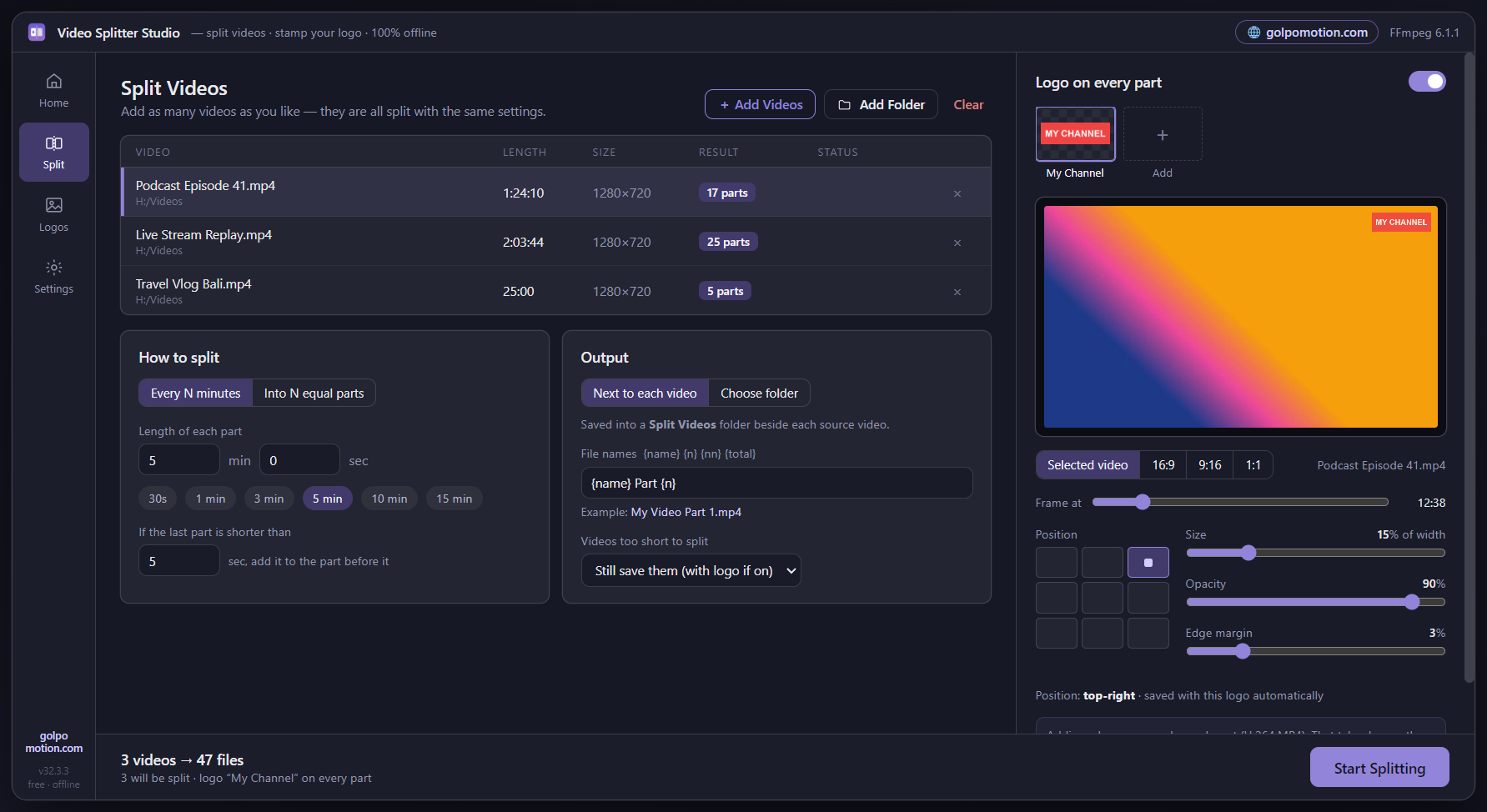
  • Split every N minutes or seconds, or into N equal parts
  • Process many videos at once: add files, a whole folder, or drag and drop
  • Save your logos once and place them with a live preview
  • Lossless cuts in seconds, or GPU-accelerated when adding a logo
  • Works fully offline. Your videos never leave your computer

Supported OS: Windows 11, 10 (64-bit)

Video-Splitter-Studio-Setup-1.0.1.exe · 117 MB · No account or sign-up needed

Video Splitter Studio window showing three videos loaded, split into 5-minute parts with a channel logo placed in the top-right corner

Everything you need to split and brand videos

Built for creators who cut long recordings into shorts, series and social clips. No credits, no watermark, no monthly bill.

Two ways to split

Cut every N minutes or seconds, or divide each video into N equal parts. Videos shorter than your length can be skipped or kept whole.

Batch processing

Add many videos at once as files, a whole folder, or by drag and drop. They are all split in one go.

Logo library

Save PNG, JPG or WEBP logos once. Each logo remembers its own position, size, opacity and edge margin.

Live preview

See your logo on a real frame from your video (scrub to any moment) or on a 16:9, 9:16 or 1:1 sample. What you see is what you get.

Fast when possible

Without a logo, parts are cut losslessly in seconds. With a logo, it uses your GPU (NVIDIA, Intel or AMD) when available, and falls back to the CPU.

Private and offline

Everything runs on your PC with a bundled FFmpeg. Nothing is uploaded and you don't need to install anything else.

See it in action

Every part is cut and stamped with your logo, with live progress for each video.
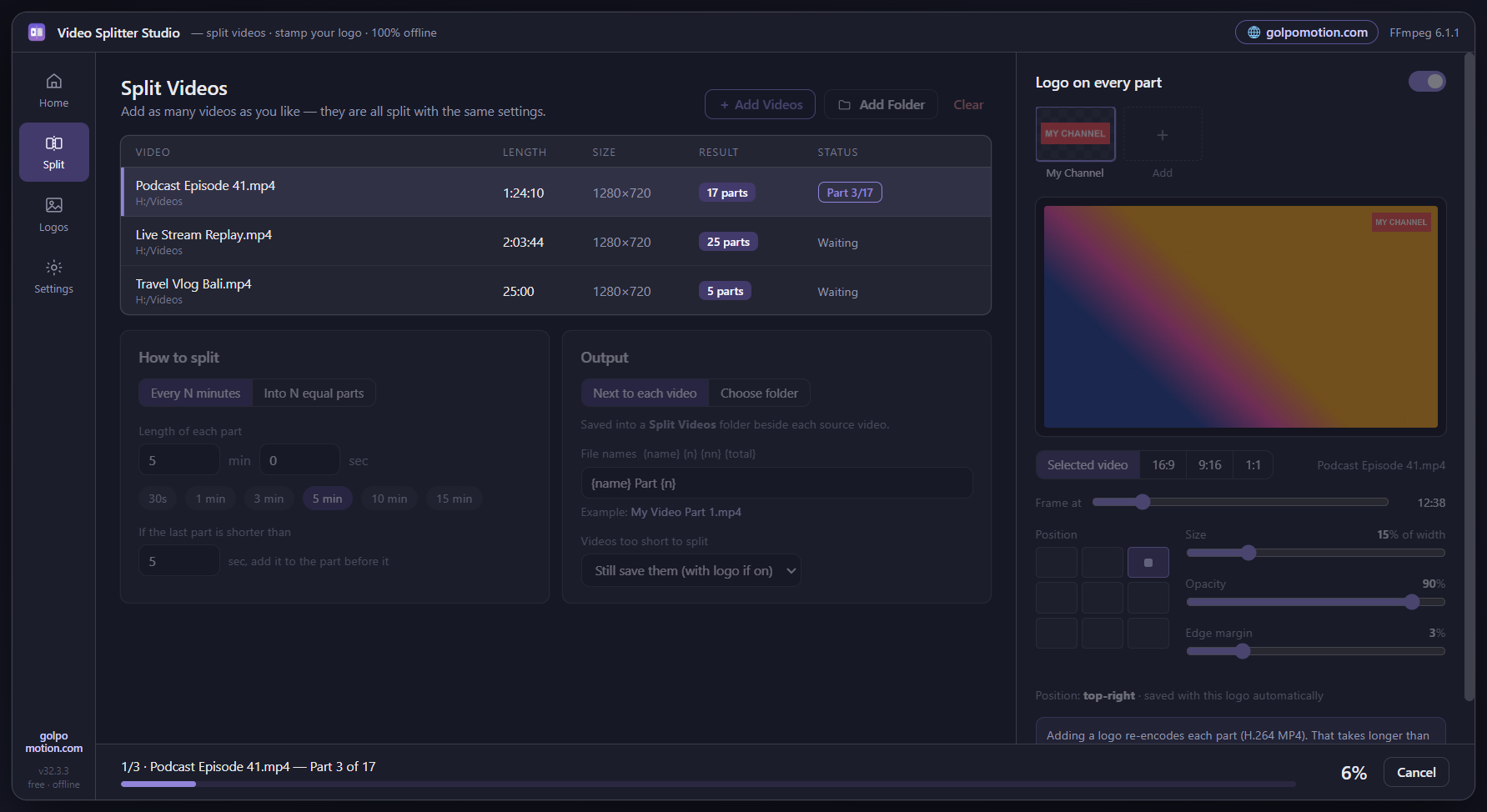
Video Splitter Studio splitting a 1 hour 24 minute video into 17 parts with a progress bar

How it works

From one long video to ready-to-post parts in a few clicks.

Download and install

Run the installer. It installs just for you, so no admin password is needed.

Add your videos

Drop in files or a folder. Add your logo to the library the first time.

Choose length and logo

Pick every N minutes or N equal parts, then place your logo with the live preview.

Split and use them

Click Split. Your parts are saved and ready to upload.

User Guide

Everything you need to get started with Video Splitter Studio.

1. Install Video Splitter Studio

  1. Click Free Download above to get Video-Splitter-Studio-Setup-1.0.1.exe.
  2. Open the file. If Windows shows "Windows protected your PC", click More info and then Run anyway. This notice appears for new apps from independent developers.
  3. Choose where to install (or keep the default) and click Install. A desktop and Start menu shortcut are created for you.

2. Split your first video

  1. Open the app and go to Split. Drag videos into the window, or add files or a whole folder.
  2. Choose Every N minutes or Into N equal parts and set the number.
  3. To add a logo, pick one from your library and adjust its position, size, opacity and margin. Scrub the preview to check it on a real frame.
  4. Click Split. Progress is shown for each video and part.

3. Add and manage logos

  • Open Logos and add a PNG, JPG or WEBP file. You can also drag an image into the window to save it as a logo.
  • Each logo keeps its own placement (a 3×3 position grid, size, opacity and edge margin), so you can switch between logos without setting them up again.

4. Find your files and name them

  • Parts are saved in a Split Videos folder next to each original video, or in a folder you choose in Settings.
  • Files are named {name} Part {n} by default. You can also use {nn} and {total} in the naming pattern.

Tips for the best results

  • For the fastest split, leave the logo off. Parts are then cut losslessly without re-encoding.
  • With a logo, every part has to be re-encoded. A computer with an NVIDIA, Intel or AMD graphics card will be much quicker than CPU only.
  • Use a transparent PNG logo for the cleanest look.

Tech specs

What you need to run Video Splitter Studio.

Version
1.0.1
Operating system
Windows 11, Windows 10 (64-bit)
Download size
117 MB
Internet
Only to download. The app works fully offline.
Video engine
FFmpeg, bundled. Nothing else to install.
Acceleration
NVIDIA, Intel or AMD GPU when available, otherwise CPU
Logo formats
PNG, JPG, WEBP
Third-party software
Includes FFmpeg (GPL-3.0). See licence notices
Price
Free

Frequently asked questions


Is Video Splitter Studio really free?

Yes. It's free to download and use, with no trial period, no watermark and no account.

Does it upload my videos anywhere?

No. Everything runs on your own PC using a bundled copy of FFmpeg. Your videos and logos never leave your computer.

Does splitting reduce the video quality?

Not when you split without a logo. Parts are cut losslessly without re-encoding, which is also why it takes only seconds. When you add a logo, the parts have to be re-encoded so the logo can be drawn on them.

Do I need a graphics card?

No. If you have an NVIDIA, Intel or AMD graphics card, the app uses it to speed up logo stamping. Otherwise it uses your CPU, which works but is slower.

Can I split many videos at once?

Yes. Add several files or a whole folder, or drag them in, and they are all split in one run.

Windows says "Windows protected your PC". Is it safe?

This message appears for new apps from independent developers that Windows hasn't seen many downloads of yet. Click More info, then Run anyway to continue installing.

Is there a Mac version?

Not yet. Video Splitter Studio is currently available for Windows 10 and 11 (64-bit).

How do I uninstall it?

Open Windows Settings → Apps → Installed apps, find Video Splitter Studio and click Uninstall. Your split videos are kept unless you delete them.

Start splitting your videos today

Free for Windows 10 and 11. No sign-up, no credit card.

Free Download